No download usually means no installer
When you search for free online games with no download, you probably want to open a page and play without running an installer. Your browser still transfers code, pictures and sound. No installation does not mean zero network traffic, no cached data or guaranteed offline access.
Check that the destination offers a playable browser version. A store page, trailer or source repository is not itself a play link. If a page offers a desktop file, that may be a different edition; the directory’s label should not decide which version you are opening.
Check four separate promises
Free describes the price of the current version. No account describes access. No installation describes how it starts. Offline describes what happens without a connection. None implies the others. A free demo also needs a clear boundary and an explanation of what the full release costs.
You can browse PixelGamesHub and read its guides without signing in, but submitting a game requires a verified account. Playing opens the creator’s website, which can have its own accounts, advertising, purchases and privacy choices. A PixelGamesHub account does not sign you into that other service.
Read the inputs before the artwork
A desktop arrow-key and mouse check does not establish phone touch support. Find the inputs and the actual tested environment, then decide whether the device in front of you fits. A suggested five-minute first session is not a five-minute completion promise.
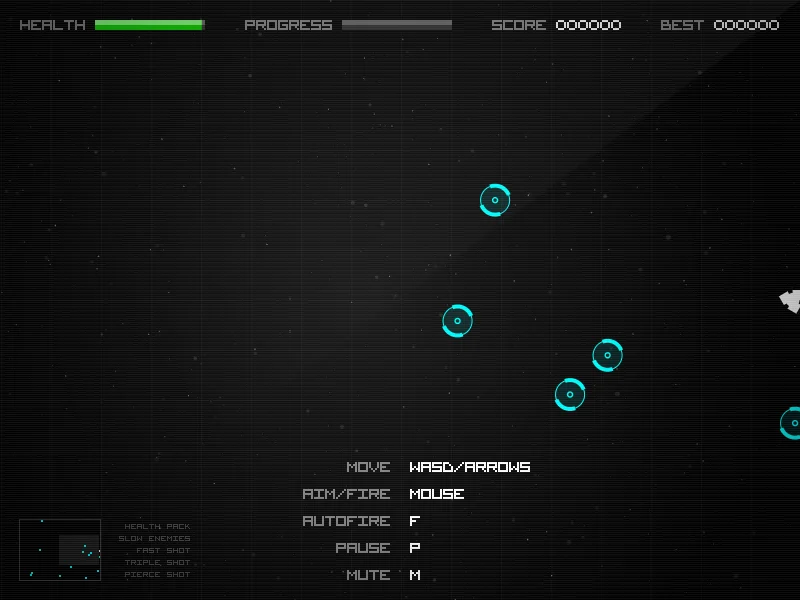
For example, our Radius Raid notes describe desktop play. Its real screenshot helps explain the view, not how it performs on your phone. Apply that distinction to each listing instead of treating browser game as a certificate of universal compatibility.
Know what happens to your progress
Some games keep progress in browser storage, others use a server account, and some do not save. For localStorage specifically, data belongs to an origin; private-session data is cleared after the last private tab closes. That does not establish which saving system a particular game uses.
Read the creator’s instructions, then test returning with an unimportant run. Before changing browsers, devices or site data, check for a supported export or sync option. PixelGamesHub does not back up another site’s progress and does not need your game password to investigate a listing problem.
Make the first session a small test
Start one run and check the controls, restart and exit. If audio stays silent, try the game’s own start or volume control first; browser autoplay policies can require an interaction. Do not disable device protections or bypass a school or workplace network policy just to launch a game.
Compare pricing, inputs and review status in the directory, then open the creator’s destination. Report a broken link or inaccurate description with the listing URL, device and specific problem. Leave out passwords, private preview links and payment information.
Official references
References checked: . The cover is a credited game screenshot, not output from this tutorial.
Keep going
Browser game guides
Practical reading for players and independent makers.
What are HTML5 games?
Understand browser-game technology without assuming price or device support.
Find your next browser game
Choose by time, controls, and review evidence.
Choose a browser game directory
Compare creator credits, version notes, review evidence and promotion labels.