Choose the right destination
If you need embed code for games, first identify whether the destination is a project page, a store widget, or the page that actually runs the build. A link is not an iframe, and a purchase card is not necessarily a playable game. Embed only your own release or a work with explicit permission for that use.
A host may provide an internal game frame for uploaded HTML5 projects, as itch.io describes in its HTML5 publishing guide. That does not establish permission to embed someone else’s project elsewhere. Use the host’s supported public method for your project instead of extracting private asset URLs. PixelGamesHub does not provide an embed service or host builds.
Start with limited permissions
This HTML example is for a website you control, not a live embed generator. Replace the example domain with a trusted HTTPS build on a separate origin you control. Add an accurate frame title and a visible direct link. The build should wait for a player to start rather than beginning play on frame load.
The sandbox below allows scripts and pointer lock but deliberately does not permit same-origin storage, popups, forms, or top-level navigation. Some builds will not save or load with those restrictions. Inspect the failure and engine requirements before evaluating additional permissions for a trusted, isolated game origin; do not remove restrictions simply to silence an error.
<iframe
  src="https://game.example.com/index.html"
  title="Play your game"
  width="960" height="540"
  style="width: 100%; aspect-ratio: 16 / 9; height: auto; border: 0;"
  loading="lazy"
  allow="fullscreen"
  sandbox="allow-scripts allow-pointer-lock"
></iframe>
<a href="https://game.example.com/index.html">Open the game directly</a>
If the frame is blocked
Open the build directly first. If that fails too, fix the build or hosting before debugging embedding. If only the frame fails, inspect the console, resource requests, and policies on both sides. The game response can restrict who embeds it through CSP frame-ancestors or X-Frame-Options; the parent page can also restrict frame sources through frame-src.
Cross-origin does not automatically prevent iframe display, and enabling CORS is not a universal fix for framing failures. If you do not control the game server, ask its owner for a supported permitted entry point, or use a normal link. Do not proxy third-party content, strip protective response headers, or bypass access controls.
Test inside the real page
Check a start, movement, restart, and exit on the actual host page. Make it clear when keyboard focus enters the game, and confirm the player can leave the frame and continue browsing. Test scrolling, resizing, fullscreen, and sound activation. The example’s 16:9 ratio is a starting point, not the right shape for every build.
Displaying a game does not establish phone support. Verify touch, orientation, keyboard, and mouse behaviour separately. Security trade-offs matter too: a same-origin game given both allow-scripts and allow-same-origin can undermine sandbox isolation. Prefer a separate game origin and evaluate only the permissions the current build actually needs.
Official references
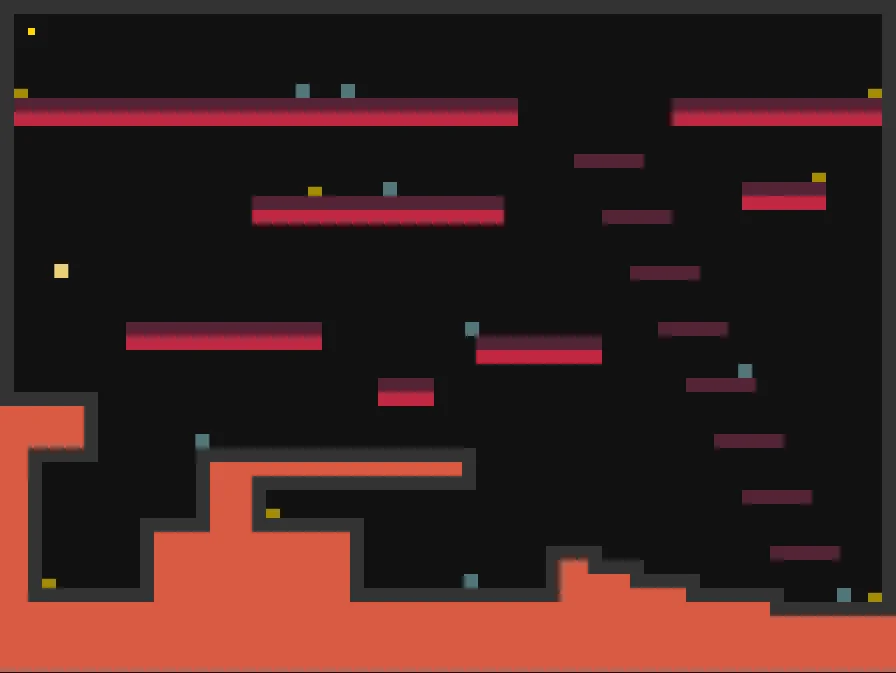
References checked: . The cover is a credited game screenshot, not output from this tutorial.
Keep going
Browser game guides
Practical reading for players and independent makers.
Put Unity on the web
Understand the Web build, hosting headers, and the checks before sharing.
Release checklist
Record manual browser-game checks and download a preparation report. No remote scan or compatibility certification.
Share your browser game
See what you submit, what stays private, and how review differs from visibility.