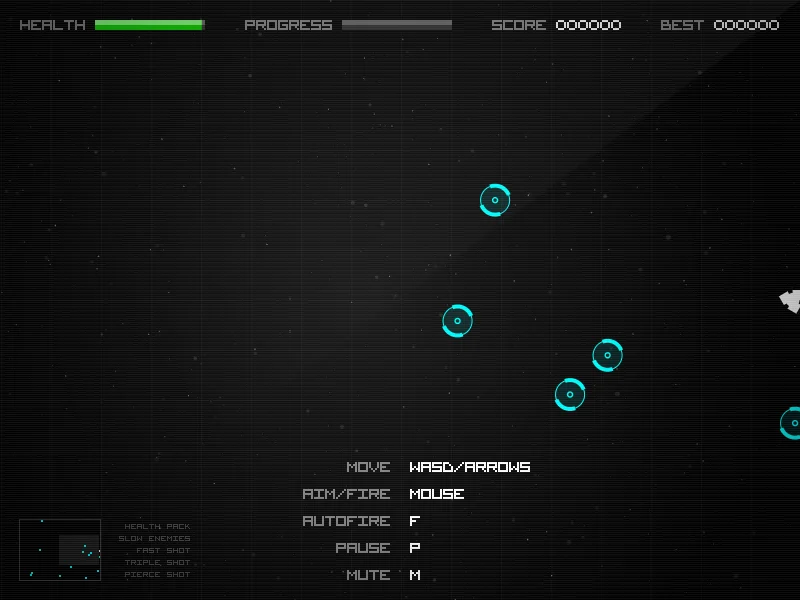
Start playback from inside the game
Click or tap the game's Start, Resume or sound control, then perform an action that should make a known sound. A page can display animations before it has permission to start audible playback. Browsers may block audio started without a user interaction; silence on the title screen alone is not a reliable failure test.
Use the visible game control rather than repeatedly refreshing. If sound starts after that click, note the behaviour for next time. If the control does nothing, continue with the checks below; not every silent game has an autoplay problem.
Check the four places that can mute audio
First check the game's master volume and separate music or effects sliders. Then check whether the browser tab or site is muted. Next inspect your device's media volume and the selected output, especially after connecting Bluetooth headphones or a monitor. Finally try a familiar audio source at a safe volume to confirm the output works.
Change one setting and repeat the same game action. Music may be intentionally absent while effects still work, so test both if the game has them. If other websites are also silent, fix the device or browser output first; reinstalling the game page is unlikely to resolve that wider problem.
Compare direct play with an embedded player
If you are playing inside another website, use its official Open game or creator link to test the direct version. If audio works there but not in the embedded player, report both addresses. Framing permissions and how the host starts playback can affect the result.
A direct version may have a separate save location. Avoid starting over or clearing storage while testing sound. If you are the creator, inspect the embedding and playback setup on a test build; players should not need to weaken browser security globally to hear a game.
Check what happens after a pause or tab switch
Record whether audio fails from the first launch, only after the device locks, or after switching apps. Return to the game, press its Resume button and retry the same sound. A consistent difference between first launch and return gives the creator a narrower reproduction case.
If an ordinary reload is necessary, save through the game's menu first. Compare a supported second browser without changing your main profile. An extension-free test profile can help isolate an extension interaction, but it will not contain your main profile's local save. Keep that distinction in your report.
Send a short, reproducible audio report
Describe a specific expected sound: for example, the jump effect in Training works before locking the phone but stays silent after returning. Include the exact build URL, browser version, device, audio output and whether music or effects are affected. Mention which of the checks above changed the result.
A recording can help if it captures the device audio, but do not assume a silent screen recording proves the game was silent. Give the creator the written steps too. Use our feedback guide to separate this technical issue from opinions about the soundtrack or the game's overall fun.
Official references
References checked: . The cover is a credited game screenshot, not output from this tutorial.